Settings and config
Open Settings from the hamburger menu at the top left, or press ESC. Settings fills the window.
Settings save automatically when you finish editing. A status message at the bottom reports any save failure and offers a retry; hover over it for details.
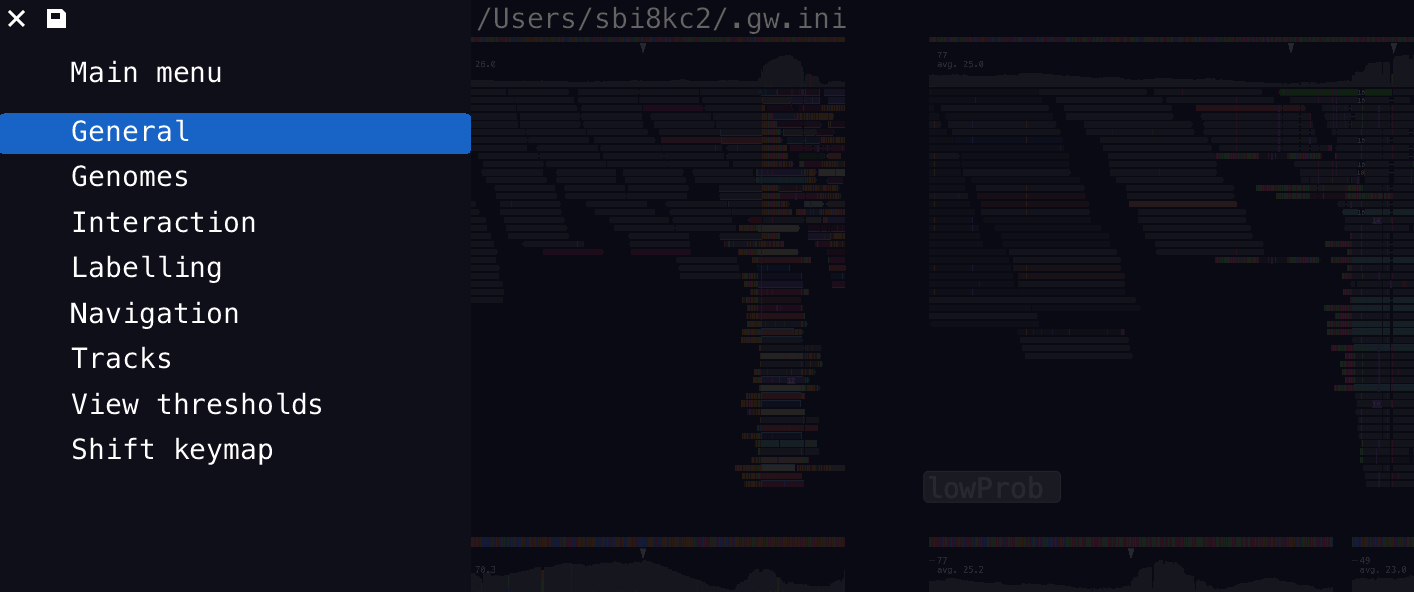
The config file for GW is called .gw.ini and is usually saved in your home directory, or under ~/.config folder. Feel free to edit this. If you mess things up, just remove the ini file and GW will make a new one in the home directory when you restart.
Custom themes
Open the Custom theme tab and enable Use custom colors. Select a saved theme in Theme, or enter a Name and click New for a fresh theme or Duplicate to copy the current colors. Rename changes the selected name; pressing Enter in the name field also renames it. Names must be unique. Each theme has its own igv, dark, or slate base. Saved themes are also available in Settings → General → Theme, alongside the built-in themes. The theme <name> command selects the same saved themes; names can contain spaces. Expand a color group and click a swatch to open ImGui’s color picker. Colors include backgrounds, reads, nucleotides, coverage, tracks, text, highlights, base modifications, and translation. Alpha controls opacity; base-quality and modification-quality shading still apply.
A live GW-rendered preview appears to the right of the color controls. It includes example reads, mismatches, indels, coverage, reference bases, and a track, and updates as you edit. The controls scroll independently so the preview stays visible. On narrower windows it moves below the controls and can be scrolled. The example does not load files or change your current view.
Changes preview immediately and save after you release the picker. Reset to base removes one override; Reset all colors removes all overrides. Disabling custom colors keeps your saved overrides. Choosing a built-in theme in General also disables custom colors.
Themes live together in .gw.theme.json beside the active .gw.ini. The enabled state and selected name are stored in .gw.ini, so sharing the JSON does not force another user’s selection. Each theme contains its name, base, and overridden colors. Color values use gwplot palette names and [alpha, red, green, blue] arrays, with channels from 0 to 255:
{
  "version": 1,
  "themes": [
    {
      "name": "Ocean",
      "base": "dark",
      "colors": {
        "BACKGROUND": [255, 20, 30, 45],
        "NORMAL_READ": [204, 160, 190, 210]
      }
    },
    {
      "name": "Paper",
      "base": "igv",
      "colors": {
        "BACKGROUND": [255, 250, 247, 238]
      }
    }
  ]
}
Only overridden colors are saved, so the remaining paint behavior follows each base theme. To share themes, copy this JSON file; Reload JSON reads external changes and keeps the selected name if it still exists, otherwise selecting the first theme. A single object with name, base, and colors is also accepted. Legacy flat gwplot color maps load as a theme called Custom and migrate to the named format when saved. gwplot supports the same collection format with load_theme_from_json(path, theme_name="Ocean") and save_theme_to_json(path, name="Ocean"). Invalid JSON rejects the entire collection and leaves the current themes intact. GW also provides LINE_GAP and CODON_START, CODON_STOP, CODON_OTHER, and CODON_SELECTED for its translation track; older gwplot versions may not recognize these additional names. Mate color overrides replace the corresponding mate palette with one uniform color; resetting restores the base palette.
Reference genomes
Reference genomes are defined by a unique genome-tag (e.g. hg19 or t2t) and a path to a local or online genome in fasta format. For best performance always use a local file if possible. Add a new reference genome by either editing the .gw.ini file, or click the + button at the top of the menu in the Genomes section.
Default tracks
Tracks can be loaded when a specific genome-tag is selected during start up. The list of tracks to load for a genome-tag is defined as a comma-separated-list of paths. For example:
hg19=a.bed,b.gff3
This line will tell GW to load a bed file and a gff3 track file when the hg19 genome-tag is used.
Ideograms can be configured by appending _ideogram to the tag e.g.:
hg19_ideogram=hg19.ideogram.bed